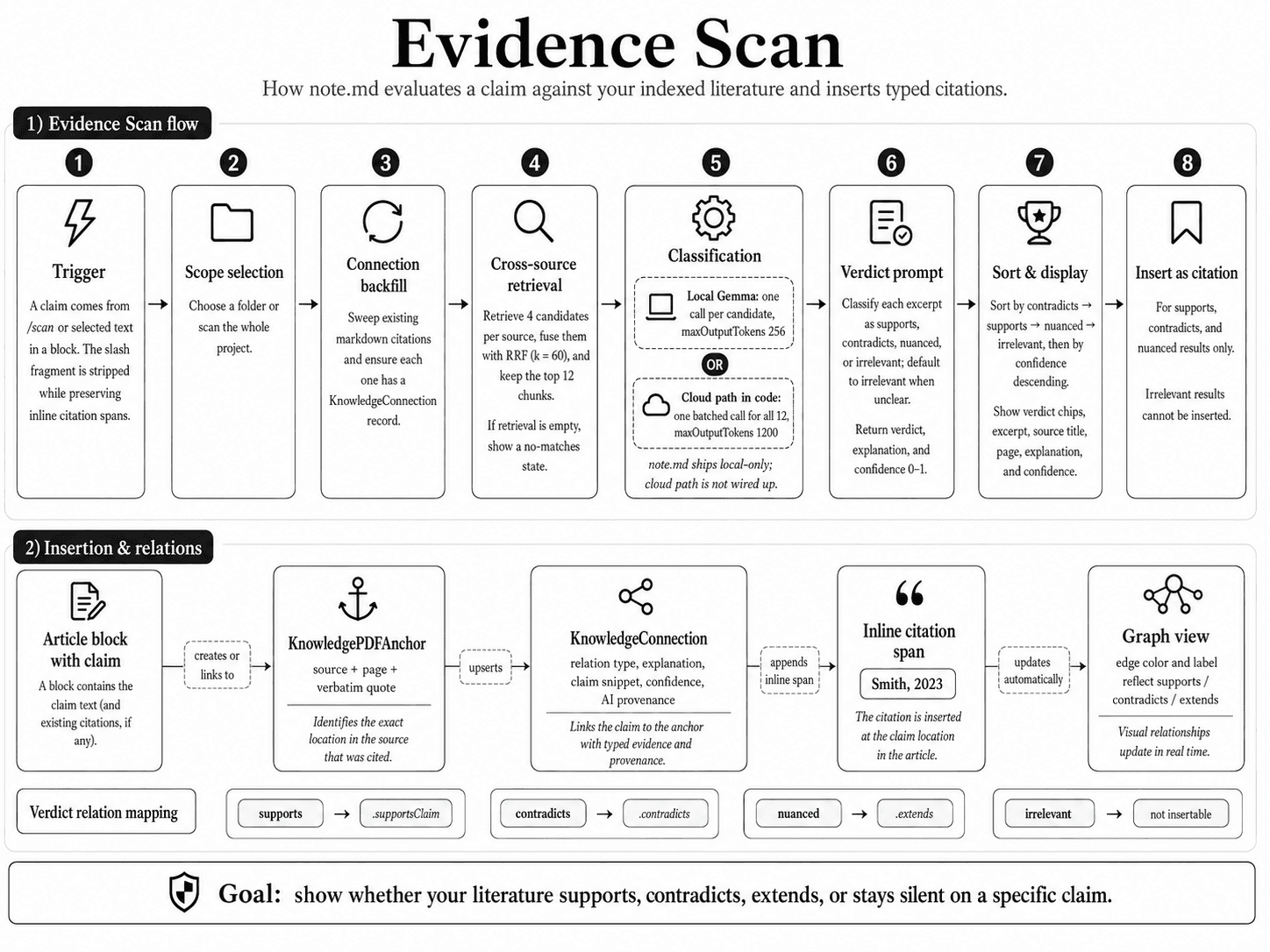
Evidence Scan answers one question: for this specific claim I just wrote, does my literature support it, contradict it, or stay silent? Type /scan in a block or select a sentence — the engine pulls relevant passages, classifies each one, and lets you insert any of them as a typed citation.
From claim to typed citation.
Evidence Scan is the most opinionated pipeline in note.md. It does not just retrieve passages — it labels them as supports, contradicts, nuanced, or irrelevant, sorts contradicting evidence to the top, and produces citations that carry their relation type through into the graph.
Step by step.
- 1
Trigger
You type
/scanin a block, or invoke it on selected text. The block's text becomes the claim. The slash fragment is stripped without disturbing any existing citation links in the block — each slash command preserves inline spans. - 2
Scope selection
A folder picker lets you scope the scan to a subset of your sources, or scan the whole project. The default is whole-project.
- 3
Connection backfill
Before retrieval, the engine sweeps the article for existing markdown citations and ensures every one has a
KnowledgeConnectionrecord. This means the graph view stays consistent even for citations you typed manually. - 4
Cross-source retrieval
rankedChunksAcrossSourcespulls 4 candidates per source from across the scope, fuses them via RRF (k=60), and returns the top 12 chunks. If retrieval comes back empty the engine returnsnoCandidatesFoundand the panel shows a "no matches" empty state — you can widen the scope or check that indexing has finished. - 5
Classification — one call per candidate
The 12 candidates are sent to the local Gemma 4 model for verdict classification, one call per candidate (
maxOutputTokens: 256). Batching all 12 into a single prompt was tested in earlier prototypes but proved unreliable on smaller Macs — local KV-cache memory pressure caused dropped or malformed responses. Running one excerpt at a time keeps each prompt small enough to fit comfortably in the context window. - 6
Verdict prompt
The system prompt defines four verdicts and explicitly says default to "irrelevant" when unclear — this avoids the model hallucinating support from neutral text. Each excerpt is sent with its claim, the excerpt's text, and its page label. The schema requires:
verdict— one ofsupports,contradicts,nuanced,irrelevantexplanation— one sentence rationaleconfidence— 0–1
- 7
Sort order
Results are sorted with
contradicts < supports < nuanced < irrelevant, ties broken by descending confidence. Contradicting evidence floats to the top because that is almost always the most important thing for you to see. - 8
Display
The results panel shows verdict chips (
All / Supports / Contradicts / Nuanced / Irrelevant) with counts, and a verdict-tagged result row per chunk with the source title, page, the quoted excerpt as a blockquote, the model's explanation, and the confidence percentage. Each row offers two actions:- Insert as citation (label adapts to the verdict)
- Open in Reading Studio (jumps to the cited page with the quote highlighted)
How insertion works.
When you tap "Insert as supporting citation" (or contradicts/nuanced):
- 1
Anchor created
A
KnowledgePDFAnchoris created on the target page with the verbatim quote asquoteText. Identical anchors (same source + page + quote) are deduplicated. - 2
Connection upserted
A
KnowledgeConnectionis upserted:article → source/anchorwith the relation type derived from the verdict, the model's explanation, the claim snippet, the confidence, and AI provenance metadata. - 3
Inline span appended
An inline citation span is appended to the article block using the source's short citation label (e.g.
Smith, 2023). The link target encodes the relation type, so renderers and exports can display it as a typed citation rather than a plain link.
The graph view picks up the new connection automatically. The relation type controls the edge color and label, so you can see at a glance which citations support, contradict, or extend your claims.
Verdict to relation mapping.
| Verdict | Relation type | Behavior |
|---|---|---|
supports | .supportsClaim | Inserted as a supporting citation |
contradicts | .contradicts | Inserted as a contradicting citation, sorted to the top |
nuanced | .extends | Inserted as an extending citation |
irrelevant | — | Not insertable |