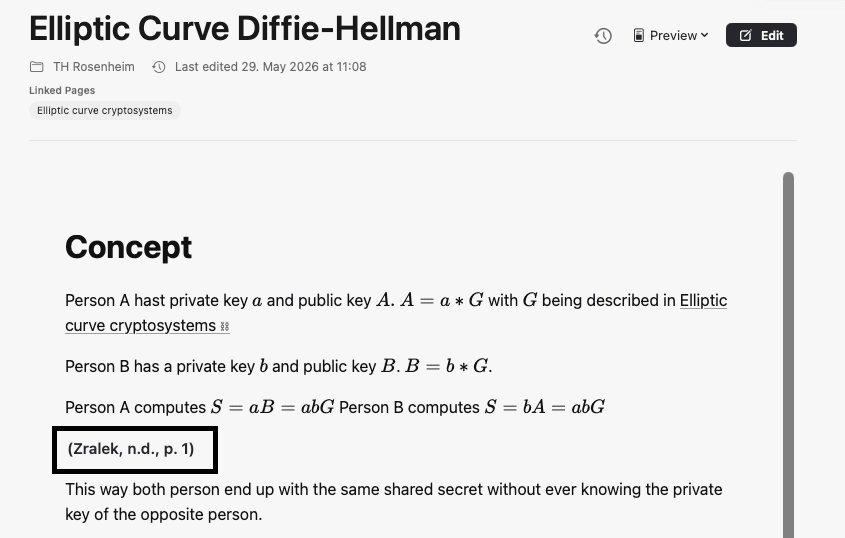
You just downloaded a paper. Usually the next ten minutes look like: drag the PDF into Zotero, open it in Preview, alt-tab to your notes app, copy a quote, paste a citation by hand. In note.md the whole thing happens in one window — and the citation you write today still points back to the exact highlighted passage months later.
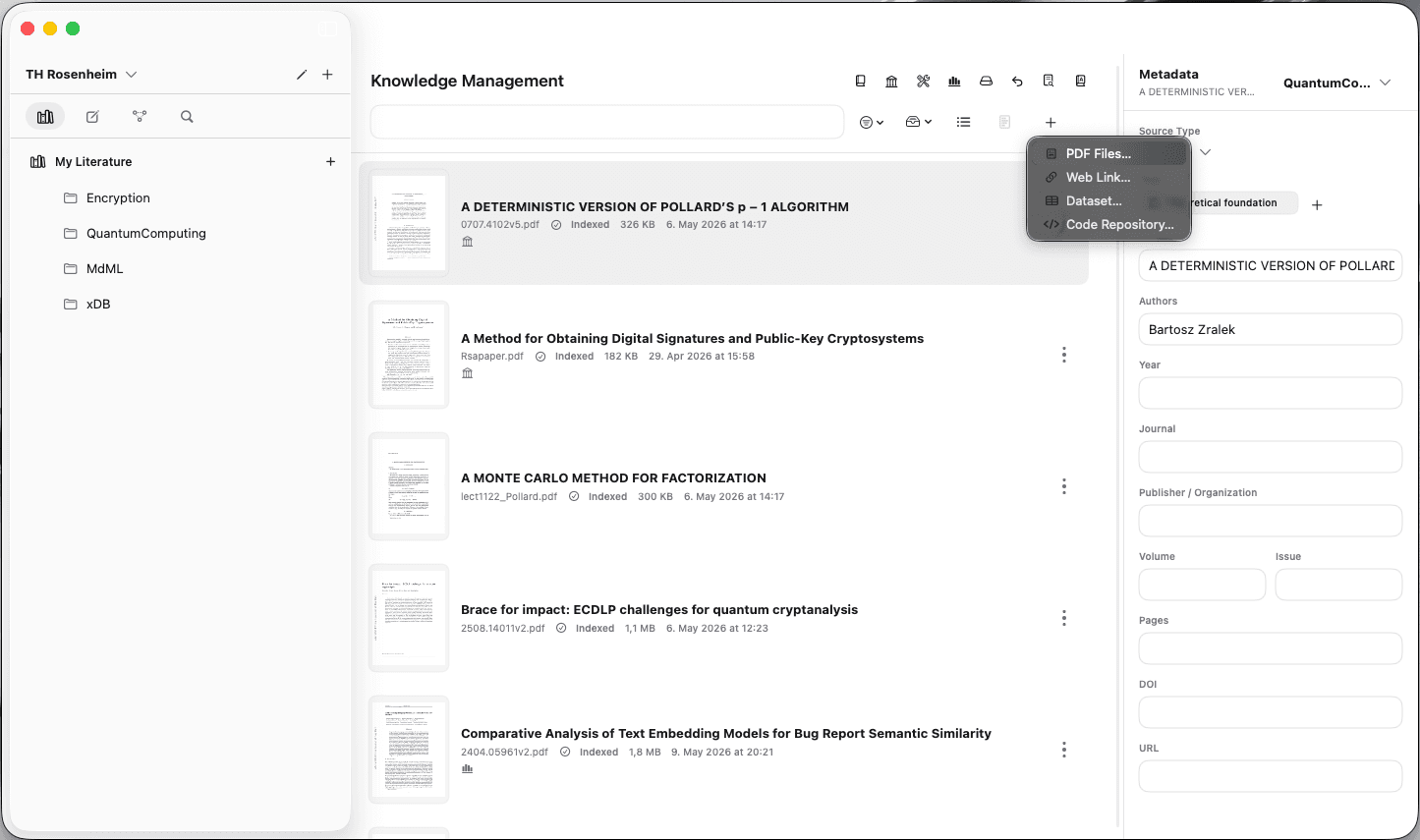
Drop the paper into your library.
Open Knowledge Managementand add the PDF. note.md picks up the title, authors and DOI from the file’s metadata — the same fields you’d otherwise hand-edit in Zotero.
From here on, the paper is part of your project. Everything that follows — highlights, bookmarks, citations — attaches back to this source.
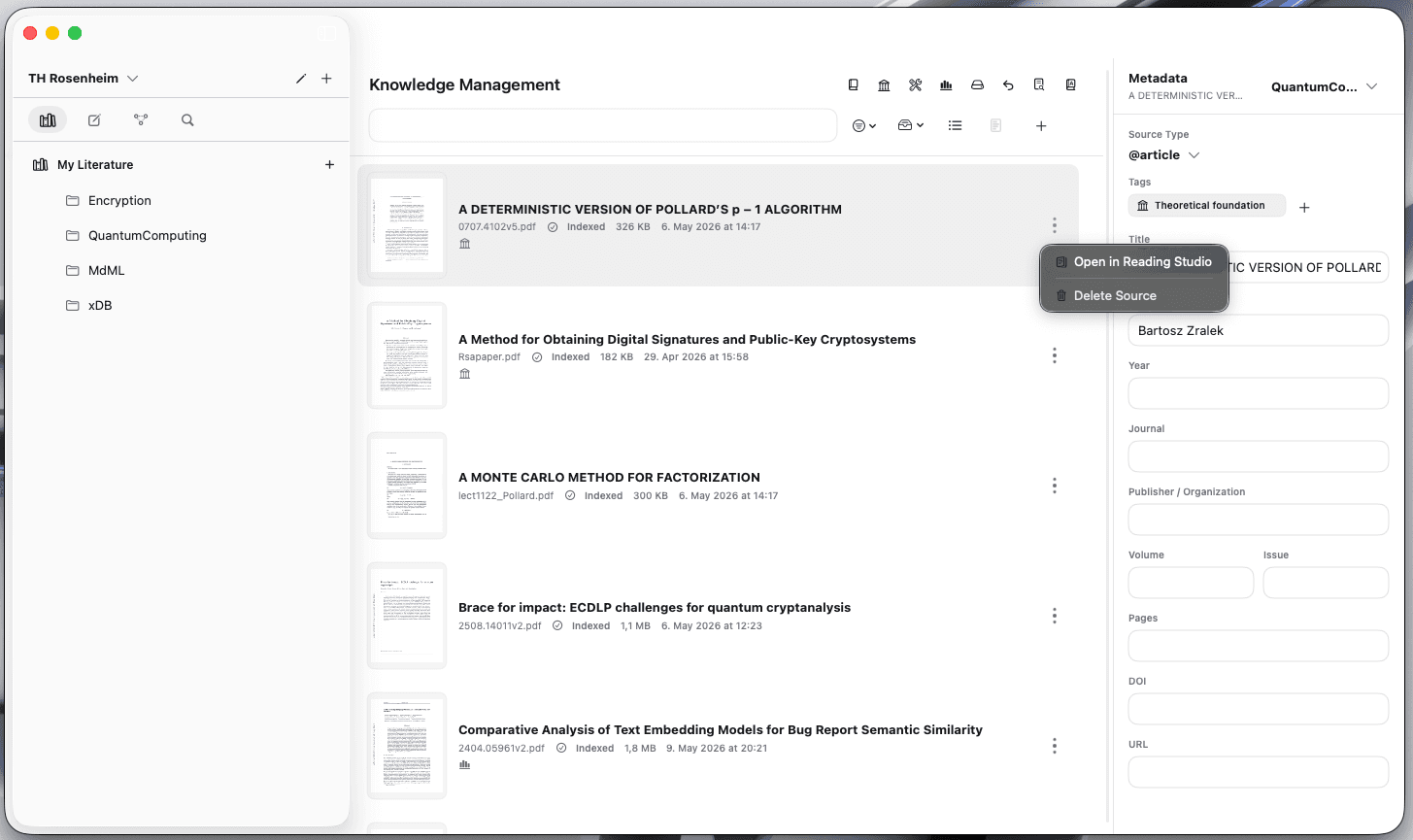
Send it to Reading Studio.
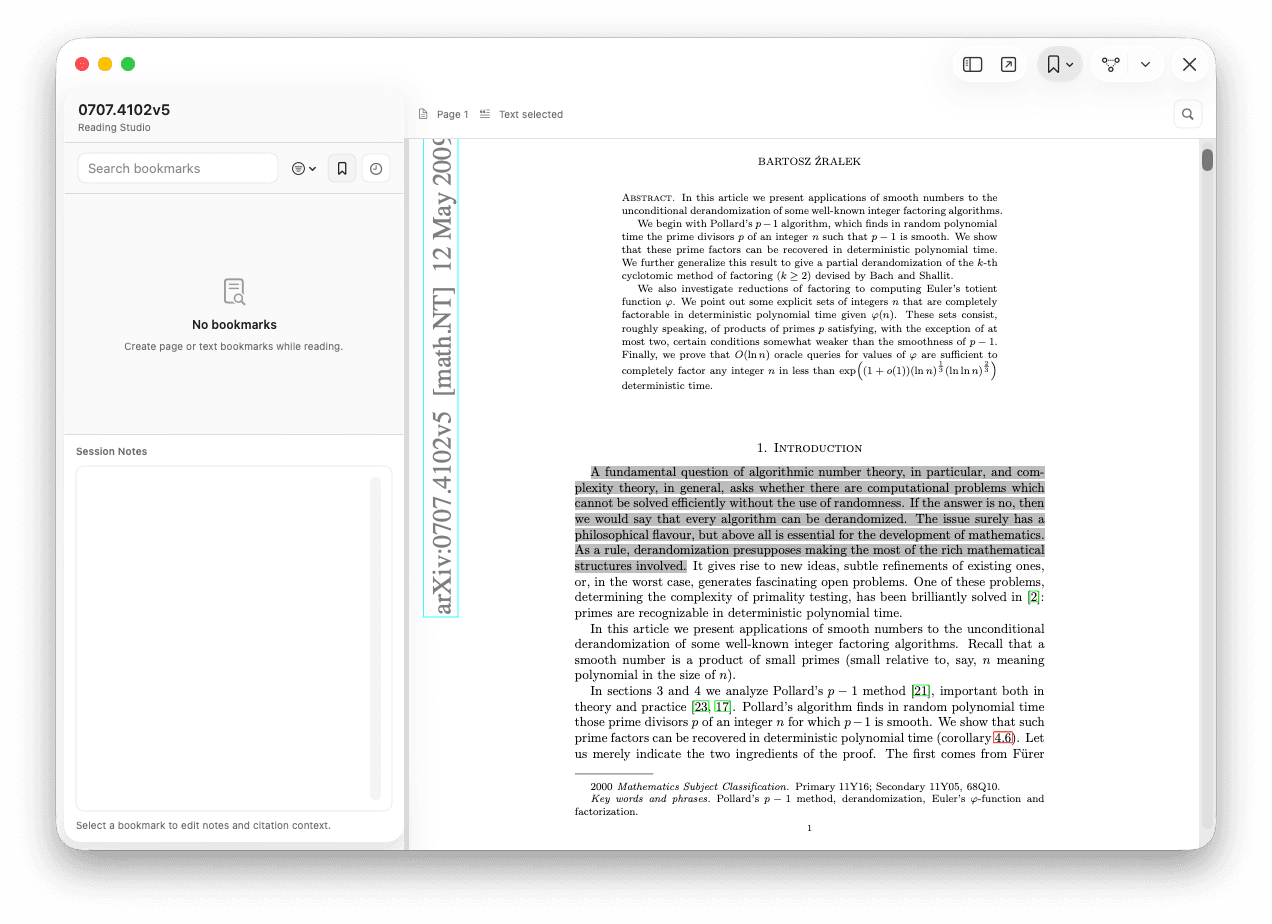
One click on the paper opens it in Reading Studio — the dual-pane view where the reading and the writing live on the same screen.
Three apps collapse into one.
The PDF on one side, your markdown notes on the other — the view at the top of this page. No Command-Tab cycle between Preview, Zotero and a notes app; the layout is the same on a 13″ MacBook as on an external display.
This is the longest beat in the workflow. It’s also the one note.md deliberately stays out of: you read the paper. Nothing is summarising it for you in the background.
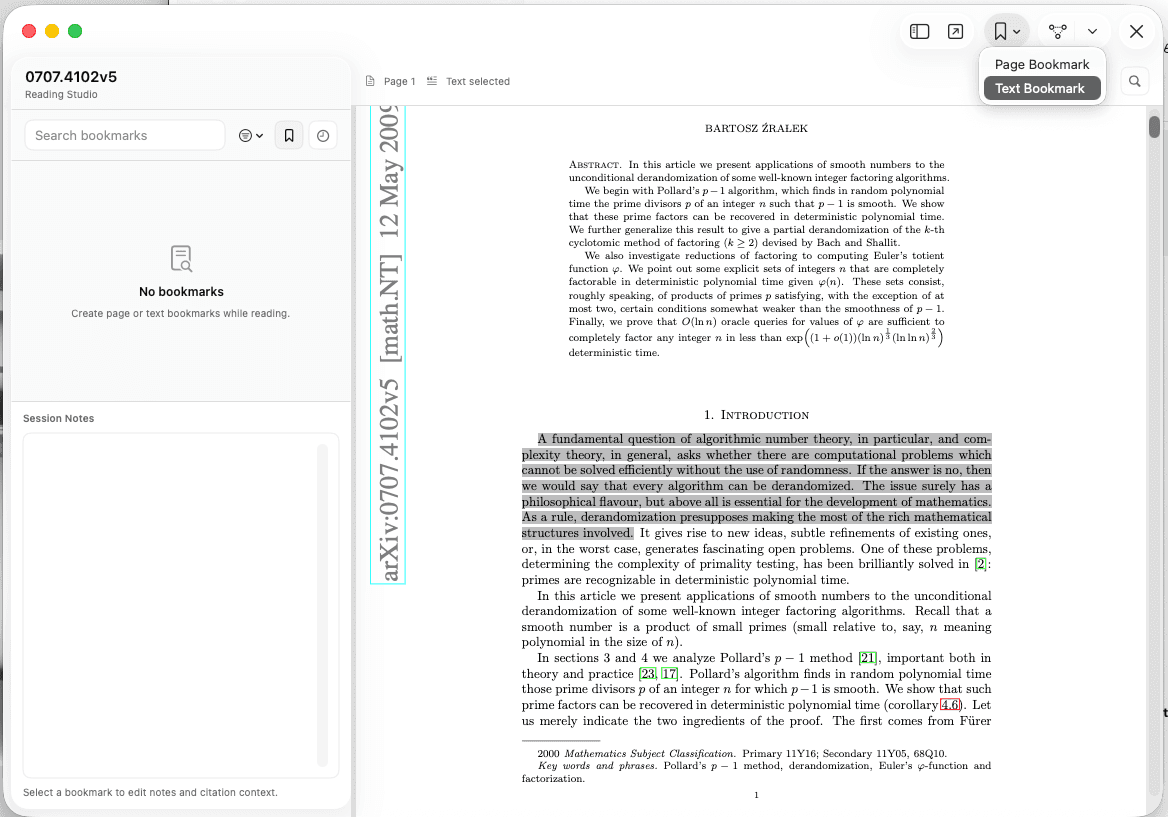
Mark what you’ll come back to.
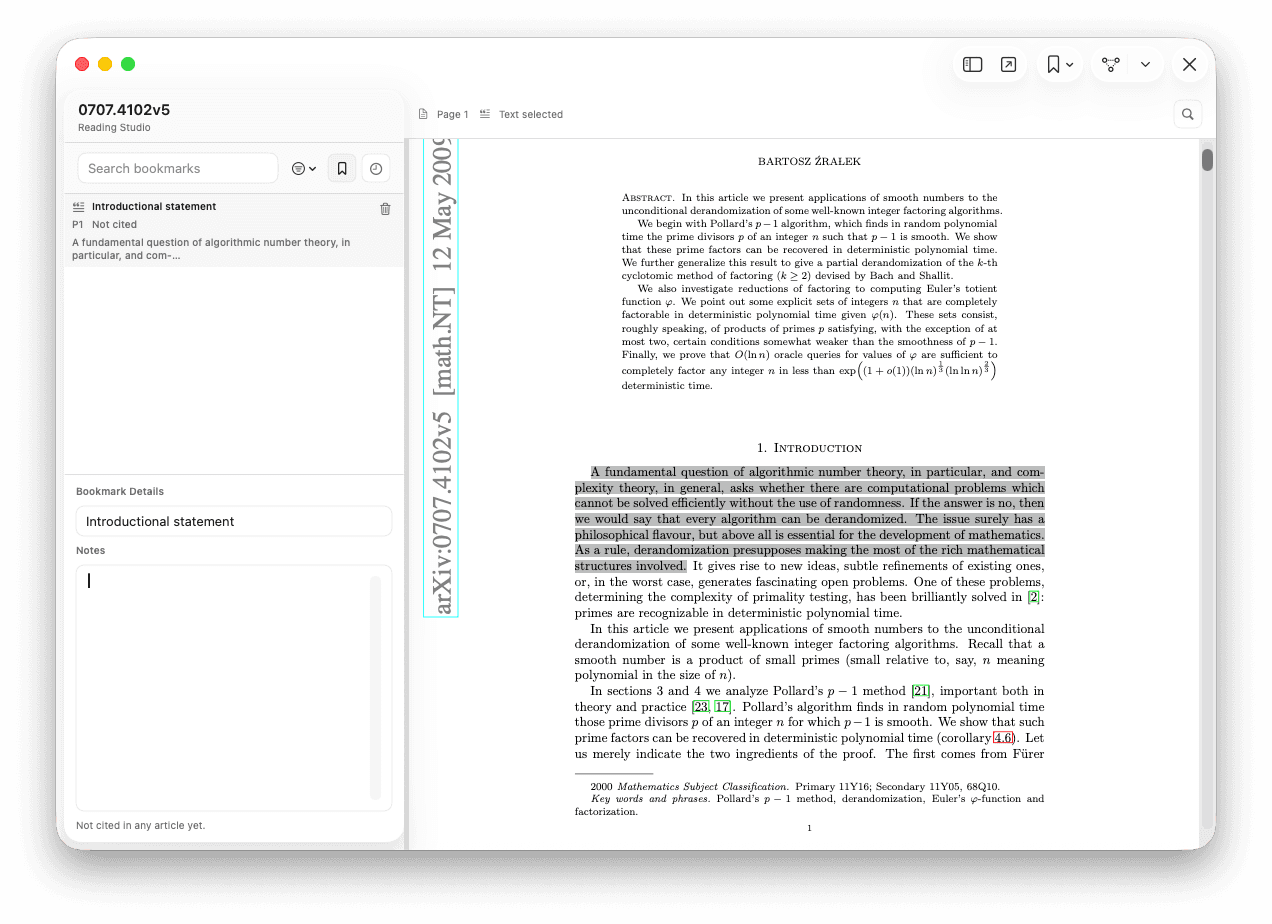
When something matters — a definition, a stat, a passage you’ll cite later — select the text and create a text bookmark. If the whole page matters but no single sentence does, set a plain page bookmark instead.
The bookmark appears in the right-hand panel. Rename it in plain English (“Method limitations”) and write a note next to it — your interpretation, your one-line summary, the question it raised. This is where your thinking lives. The PDF stays untouched; the bookmark is yours.
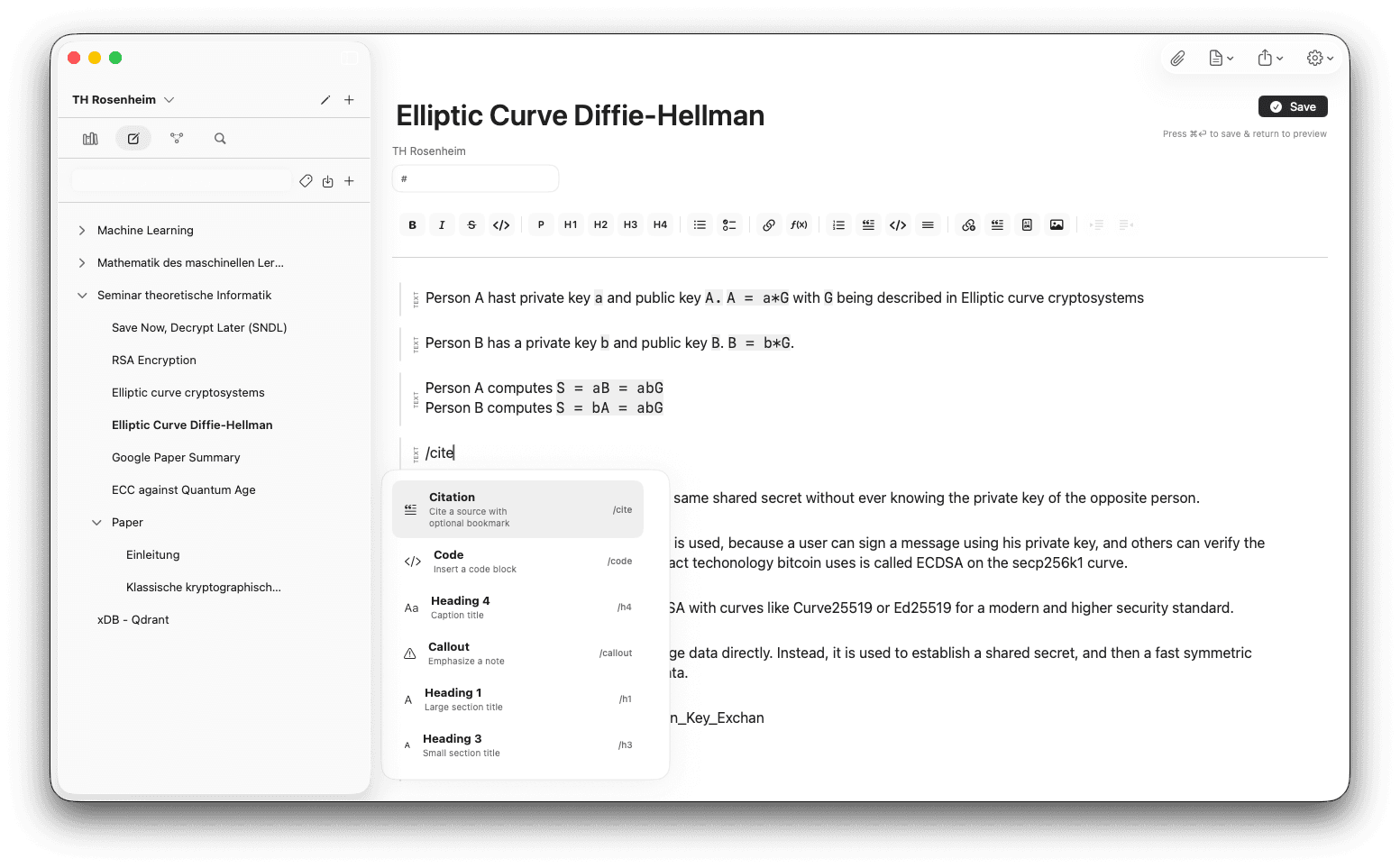
Switch to your article and type /cite.
Open the article you’re drafting. When you reach a sentence that needs a source, type /cite mid-flow. note.md uses the citation style set in your project settings — APA, MLA, IEEE, Chicago and so on — so the output already matches your target journal or department’s house style.
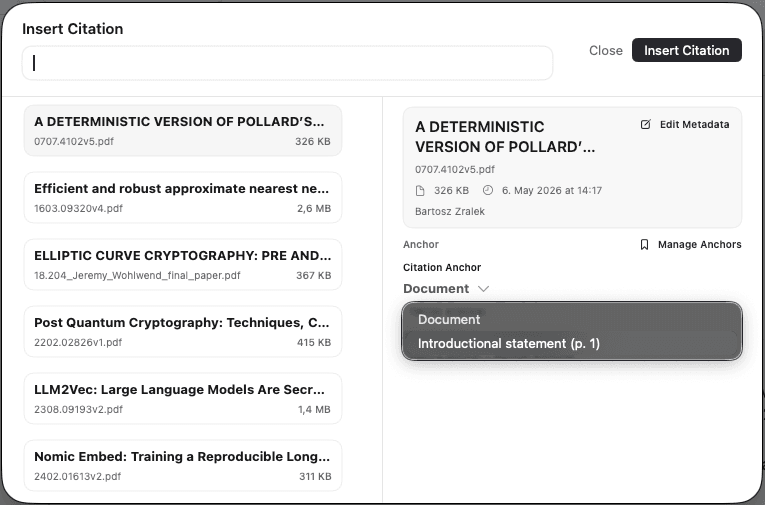
The picker drills from paper down to bookmark.
The citation picker shows every paper in your library. Pick the paper, then pick the specific bookmark you made earlier — the one you renamed and annotated in step 5.
You’re not citing “this paper, somewhere”; you’re citing this passage. The trail back to the source is exact.
A citation that points at the actual passage.
The formatted citation lands in your prose. Click it months from now and you’re back on the exact bookmark, in the exact PDF, with your original note still attached.
This is the chain that survives: highlight → bookmark + your note → cited passage. No more “I know I read this somewhere.”