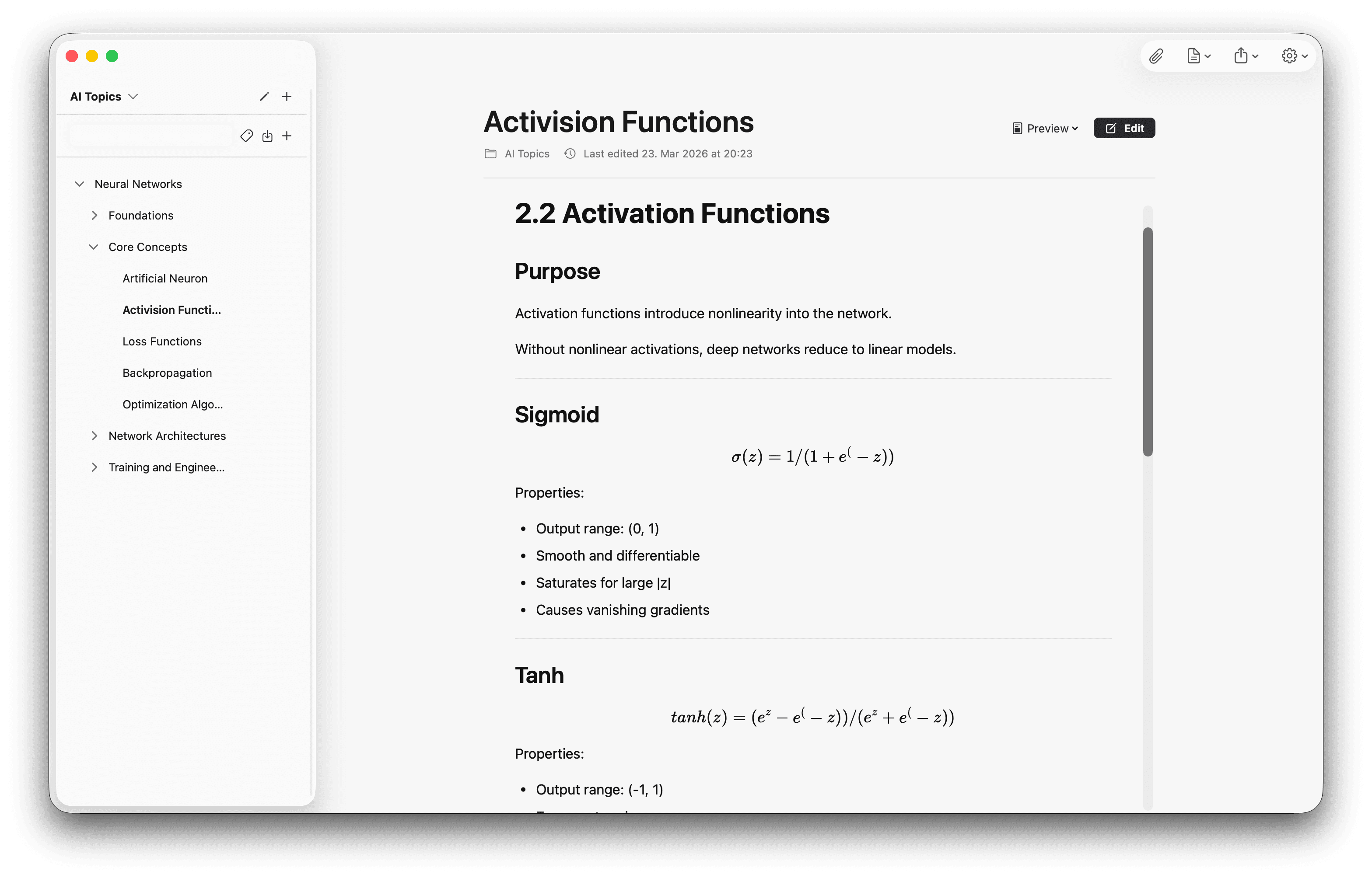
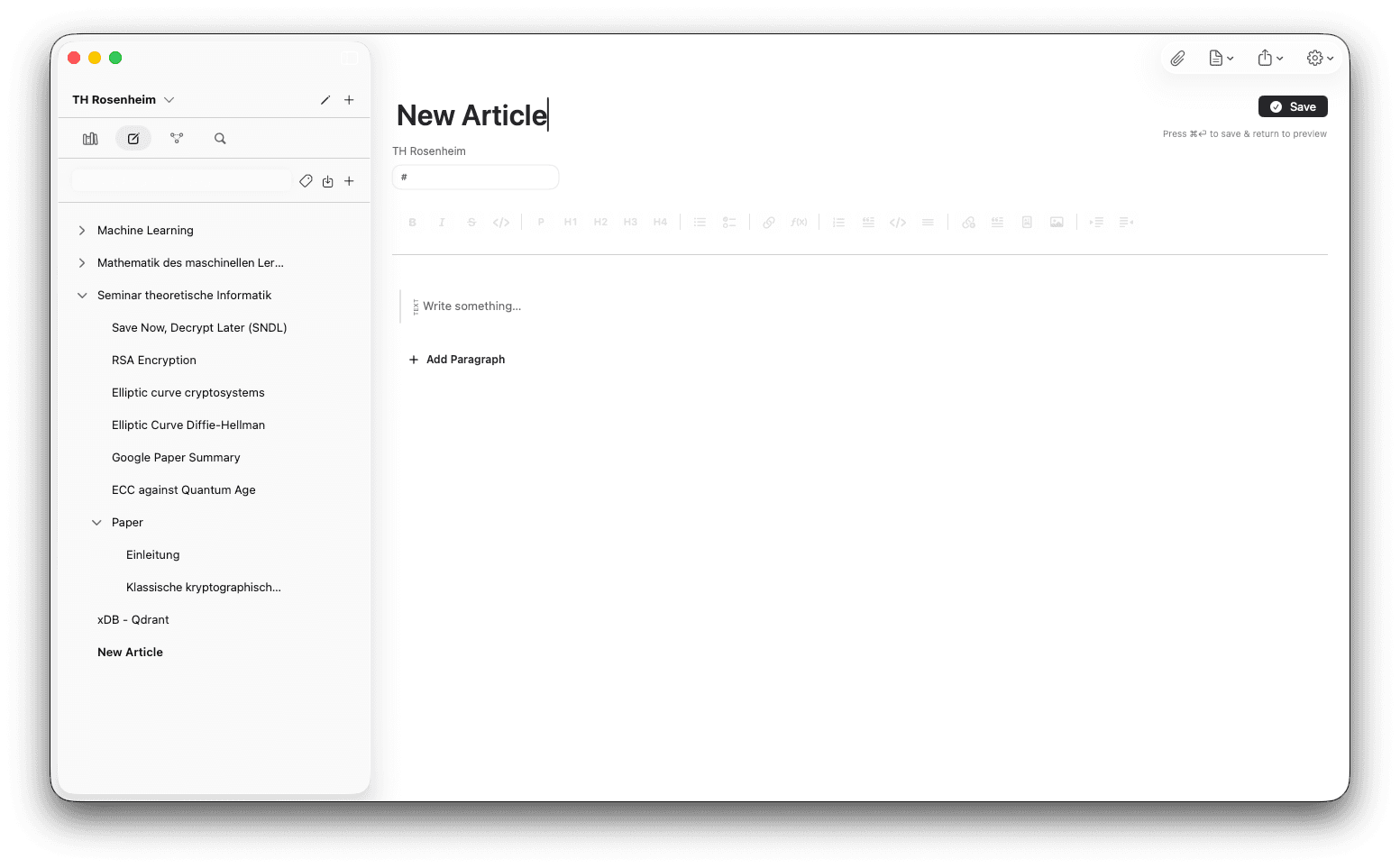
Articles are the knowledge foundation of a note.md project — your vault for everything you write, every link you draw between ideas, every cited passage. Here’s how a first article comes together.
Hit + and start writing.
Reach the article space from the sidebar or with ⌘ + 2. Click + to create your first article and you land directly in the editor, with a single blank block waiting for your cursor.
It looks like markdown, but it isn’t really markdown — it’s a block-based editor that writes markdown for you. You can compose a whole document without typing a single # or [](). To change what a block is, you do what you do for most things in this editor: type /.
Twenty-five commands, three families.
Type /anywhere and a palette appears with every block type and action the editor knows. Twenty-five commands in total — but they fall into three families, and once you can see the shape of the menu the actual commands become obvious.
Citation & Linking
These four build the knowledge graph as a side effect. Every /cite and every /link, /wiki or /pdfis recorded as a connection — to a source or to another article. The new edges appear automatically in Graph View, where you can label each one with a relation type.
The Scan command
Treats the current block as a claim and queries your library for sources that back it up, contradict it, or qualify it. See step 4 for the full workflow.
Everything else.
The other twenty commands are the standard editor toolkit — the things you’d reach for in any block editor, grouped so the palette stays scannable when you type /.
Headings & structure
Text & lists
Blocks & callouts
Tables
Media
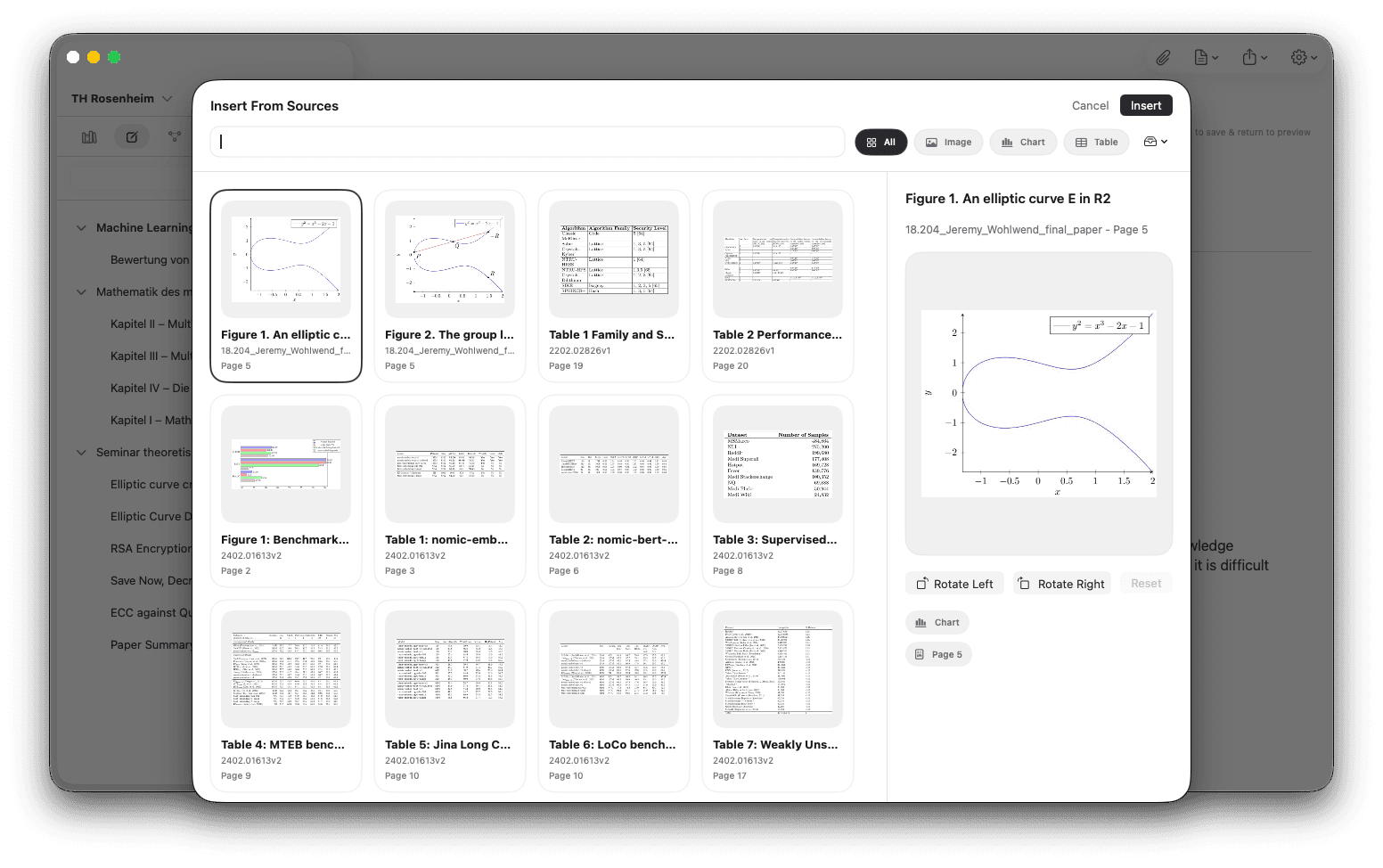
Pull figures straight from your sources.
When automatic indexing runs on your library, note.md extracts every figure, chart and table from your PDFs into a project-wide asset pool. The /insertcommand opens a picker over that pool — choose the asset you need and it lands in your article, attributed to the source it came from.
Inserting your own images from the article’s attachments instead? That’s /image.
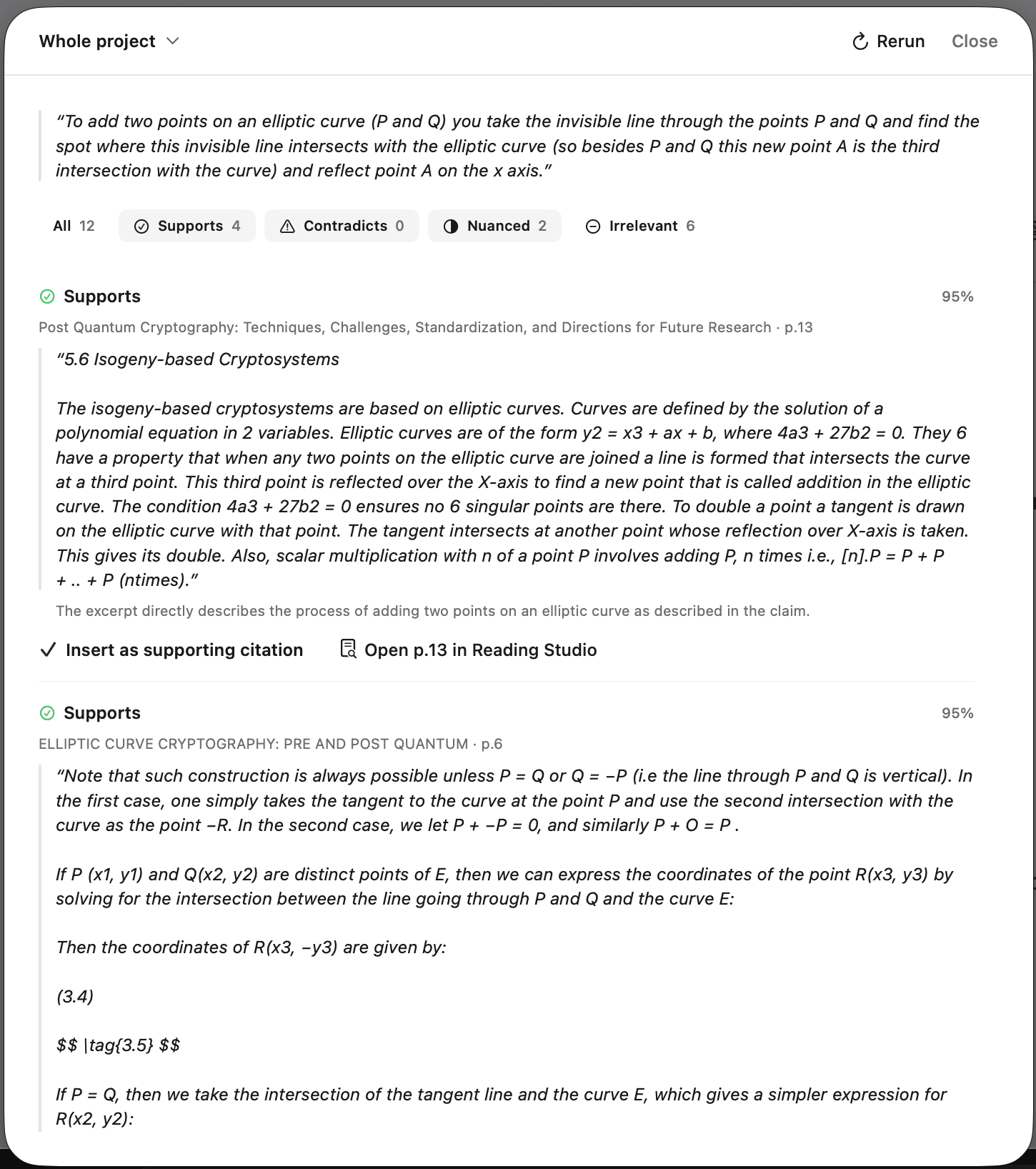
Treat any block as a claim — check what your library says about it.
Place your cursor in a sentence you’ve just written — or one you’re unsure about. Type /scan. note.md treats that block as a claim and searches every passage in your knowledge management library for sources that support, contradict or nuance it.
The results panel ranks matching text snippets next to the source they came from. When one fits, insert the citation straight from the panel — it lands in your prose anchored to the exact passage that justified it.
/scandoesn’t write the sentence for you. It reminds you what you’ve read.